Notebook variables
Variables let you define a value once (e.g. a symbol, a lookback window, a
threshold) and reference it as @name in every cell of the notebook. Change
it in one place and every query picks it up. Variables are built on QuestDB's
DECLARE syntax.
Defining variables
Click Variables on the notebook toolbar (it reads "Variables (N)" once
you have some). Each row is @name := value, where the value is any SQL
expression: a string, a number, an interval, or a function call.
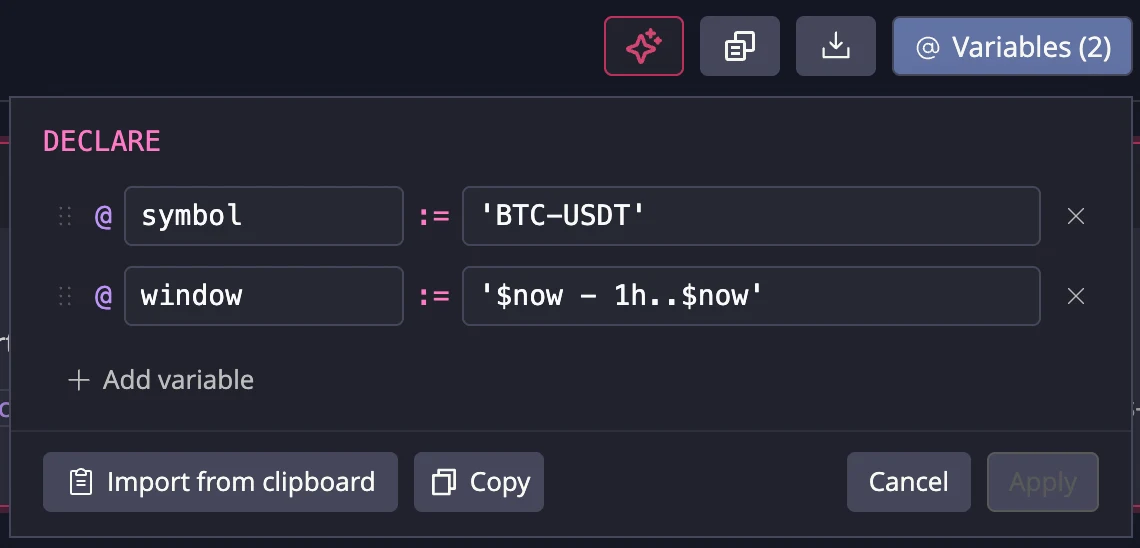
Add variable appends a row. Apply validates every variable against the server and shows errors inline on the failing row; Cancel (or closing the popover) discards your draft.
A pair like this parameterizes a whole dashboard:
DECLARE
  @symbol := 'BTC-USDT',
  @window := '$now - 1h..$now'
with cells querying WHERE symbol = @symbol AND timestamp IN @window.
How variables are applied
Variables apply to every query in the notebook: cell runs, chart refreshes, validation, and result downloads.
Order matters: a variable can reference variables defined above it. Drag the
handle at the left of a row to reorder. If a cell declares its own variables
with DECLARE, they are merged with the notebook's, and a cell-level variable
with the same name shadows the notebook one.
Charts pick up changed values on their next refresh; table results pick them up when you re-run the cell.
Copying and importing
The copy button copies your variables as a ready-to-paste DECLARE block, and
Import from clipboard parses a DECLARE block back into rows. This
round-trip moves variables between notebooks, or between a notebook and the
SQL editor.
Next steps
- Live dashboards uses variables to parameterize a whole board
- Notebook charts covers drawing the queries variables feed into
- DECLARE documents the underlying SQL syntax